

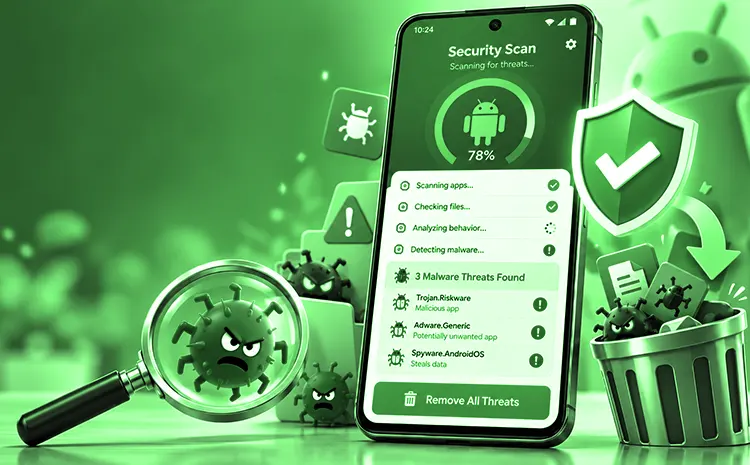
Is your Android device suddenly extremely slow, displaying strange warnings, or otherwise behaving erratically? Then your device may be infected with malware. These following tips may help you.
How to Find Malware on an Android Phone
Malware on smartphones often manifests itself through typical signs: The device is very slow even after a restart, crashes unexpectedly, or the battery drains unusually quickly. Here’s how you can determine if your device is infected:
1. Check Data Usage for Suspicious Activity
Many malware programs collect and transmit data. If you suspect an infection on your mobile phone, check for unusually high data transfers.
You will see this info if you type “Data usage” in the search field in your phone’s settings. Under “App data usage” and “Wi-Fi data usage”, you will see usage graphs and will be able to tell which days your device consumed the most data.
Along the bottom of the chart, below the graph, you’ll see a list of apps and their data usage. Tap an app to view the amount of data used when the app was open (or “in the foreground”) and the amount used when the app was open in the background.
2. Identify Disguised Apps and Unwanted Pop-Ups
If a recently installed app is using a lot of background data, this could explain why banner ads or other pop-ups keep appearing on your screen. Often, these unwanted pop-ups are caused by a seemingly harmless app that you installed some time ago.
Sometimes, apps like these only start displaying ads or performing other unwanted actions weeks after installation. Think carefully about what you’ve installed recently. If possible, block data usage and see if that solves the problem.
Caution: Some apps require the use of background data, for example, to notify you of incoming messenger messages or emails.
Apps that show ads and unwanted popups over other apps might need to access the “Display over other apps” permission. Search for the app in your device’s settings with “Display over other apps” or find the “Special app access” section in Apps or Permissions. The exact name of the menu could be different depending on your Android version and device manufacturer. Go through the list and double-check your findings. If you notice an app you are using might be dodgy, click on it and turn off the access if required.
How to Remove Malware from an Android Phone
3. Uninstall the Suspicious App
If you believe you’ve identified the offending app or suspect that a particular app is malicious, uninstall it. Go to your device’s settings and tap apps, then find the app in question and select it. Tap Uninstall on the screen that appears. Certain applications can only be disabled and not uninstalled. These include third-party apps that came pre-installed on the device, but again, these should not be presumed to be safe.
4. Check Device Administrator Apps
If you’re unable to uninstall the app, see if the app has been set as a device administrator. Some Android devices can restrict an app from being uninstalled. Go to Settings → Security (or Security and privacy) → Device admin apps. Menu options may differ depending on your device and version of Android. If you see the app in the list and device administrator access is turned on, pick the app and tap “Deactivate this device admin app” or similar. You should be able to delete the app at this point.
5. Scan Your Device with an Antivirus App
If the antivirus app recognises the malware, it may be able to detect and remove it. However, detection is not guaranteed. To do so, install a free antivirus app or a trial version of a paid app from the Google Play Store. Established products include:
- Kaspersky Antivirus: AppLock
- ESET Mobile Security & Antivirus
- Norton 360: Mobile Security
Launch the app of your choice and let it scan your device. If nothing is detected, try a different manufacturer. However, these apps are often less effective at detecting new malware.
For everyday users, it’s generally not necessary to use such programs permanently. Therefore, feel free to uninstall the security app after you’ve removed the malware.
6. Remove Malware in Safe Mode
In safe mode, all apps that users have subsequently installed are disabled. Malware that prevents any use of the device can be removed in this mode.
This applies especially to ransomware programs that lock your device’s screen and demand money to unlock it.
To start safe mode, completely power off your device. When you turn it back on, you’ll need to press a specific key combination, for example, the volume up button and the power button simultaneously. The exact combination and how long you need to press it will vary depending on the manufacturer and model. You can find instructions for your specific device by searching online for “safe mode” along with your manufacturer and model name (for example, “Samsung Galaxy S10e”).
In safe mode, most third-party apps are disabled, which may allow you to remove a suspicious app. However, some malware symptoms may persist, and safe mode does not guarantee that ransomware restrictions will disappear. Now you can uninstall the app causing the problem via the settings (see above). If that doesn’t work, also check in safe mode whether the app has the status “Device management app” or the permission “Show over other apps” (see above).
Factory Reset: The Last Resort for Android Malware
Sometimes none of the described measures work. In that case, a factory reset may be necessary. Warning: All information you have stored on the device, including photos and chat messages, will be permanently deleted during this process. It will only save the smartphone itself.
7. Reset Your Android Phone to Factory Settings
Reset to factory settings: You can find this function by entering “factory settings” or “reset” in the settings search. Tap on the search result and then confirm the prompt.
Resetting in safe mode: If you can no longer navigate to the settings menu, for example because the screen is locked, you can also reset your smartphone in safe mode (see above).
Hard Reset: Alternatively, you can switch off the device and reset it using the external buttons. We explain exactly how to do this step by step here: Hard Reset: Resetting your smartphone using the external buttons.
Can Malware Survive an Android Factory Reset?
Some persistent threats may survive a factory reset, particularly if the device’s firmware or system software has been compromised. However, malware appearing as a system app does not necessarily mean it will survive a reset.
If the infection persists even after a factory reset, seek help from the device manufacturer or a qualified security professional. Reinstalling the official operating system or firmware may be necessary in some cases.
Also Read: Best Antivirus for Android: Top Mobile Security Apps